
You might have heard how LinkedIn allows you to add video and media to your profile.
It’s wonderful! It enables you to engage your LinkedIn viewer with material like:
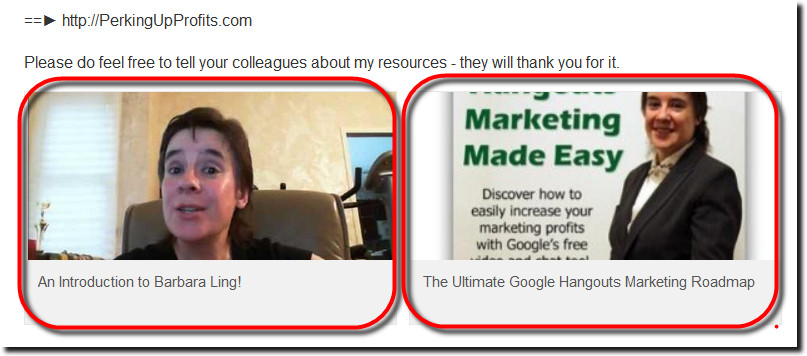
Thing is….some people do NOT have that automatically turned on! That was my experience as well but after some out-of-the-box thinking, I uncovered a solution that activated it for me.
Here’s how!
Step 1.) Verify you cannot add media like videos, images and the like to your LinkedIn Profile.
It’s an easy thing to verify. Click “edit” on your profile and see if THIS is staring you in the face when you’re looking at the top of your Summary..
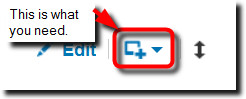
If you do NOT see that box with the plus, you CANNOT upload media.
But not to fear! Next:
Step 2.) Edit your LinkedIn summary and add the following.
This is a temporary add. At the top of your summary, include a direct link to one of your videos on YouTube.
At the bottom of your summary, include a direct link to your YouTube Channel for good measure.
Yep. This isn’t intuitive at all. I agree.
Save your profile and then:
Step 3.) Go about your life and check your LinkedIn profile anywhere from a few hours to a day or so.
At some point, you should see the “Add media” image (ie, the circled thingee up there in step 1) has miraculously appeared.
Once that happens, you can then delete the URLs you had added.
I think this happens with accounts that have been created years ago. My LinkedIn account was born about, hmmm, 5-6 years ago? When I decided to update it with video awhile back, the “Add Media” button was NOT visible to me. 🙁 But by following the steps above, it appeared within a day.
Why not give it a try?
Grow strong,
Barbara Ling


 Get Started Here
 You’ll love what you learn… Promise!